If what you want is to make a bootable Windows USB (for installation purposes) from the Windows OS ISO file, then that could be easier than you think.
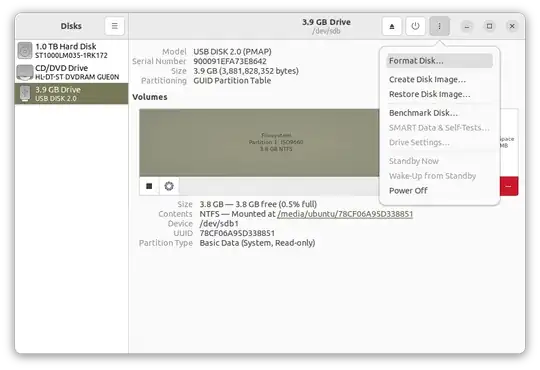
You will need first to prepare the USB disk by formatting it into MBR/DOS disk format first, which can be done with e.g. gnome-disks by selecting the USB disk then choosing Format Disk... from the main menu like so:
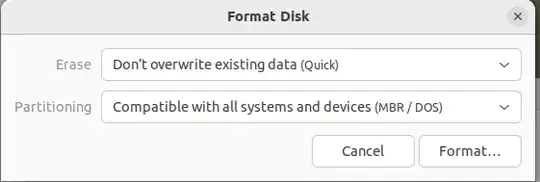
Choose the right format and click Format... to format the disk:
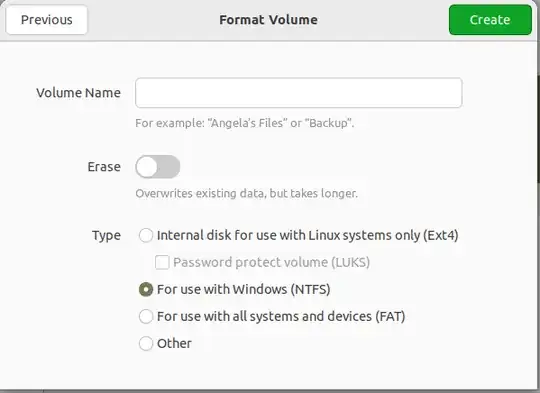
Create an NTFS partition on the disk by clicking the + sign and then clicking Next in the top of the dialog box. Then choose For use with Windows (NTFS) and format by clicking Create like so:
Now, your USB is ready.
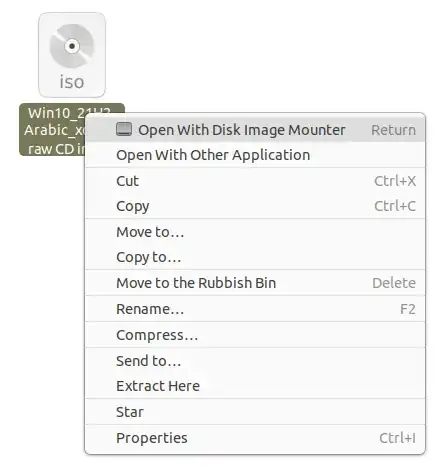
Mount the Windows ISO by right-clicking on it and choosing Open with disk image mounter like so:
Then select the newly created mount point from the left side of the file manager like so:

Finally, copy all those Windows files to the NTFS partition you previously created on the USB disk. Wait for the copying process to finish and make sure you gracefully eject the USB disk afterwords to avoid any copy/filesystem errors. That's it.
Technical Notice
UEFI standards require FAT32 support, but don't require NTFS support nor it prohibits it. However, manufacturers are increasingly adding NTFS support as well lately (I mean in the last decade). Moreover, even before that, most systems ship preconfigured with "UEFI first" firmware setting and not "pure UEFI" mode. Also, systems that can only support "pure UEFI" exist, but are not common.
The assumption that UEFI can only support FAT32/16/12 was never true, please see the 4th paragraph here that sums it up. And as the firmware dedicated chips increase in size, not only NTFS will be supported, but other filesystems will be supported natively as well.


