Just picked up a precision 5510 loaded with 14.04. Everything is pretty smooth but for some reason the super key does not work ( checked with xev, it works). I downloaded the unity tweak tool and it doesn't register when I try to change the search to use the super key.
Asked
Active
Viewed 5,266 times

5 Answers
27
Dell installs a package dell-super-key that disables this behavior. I did the following to get my super key functioning:
Uninstall dell-super-key:
sudo apt-get remove dell-super-keyInstall Compiz Config Settings Manager:
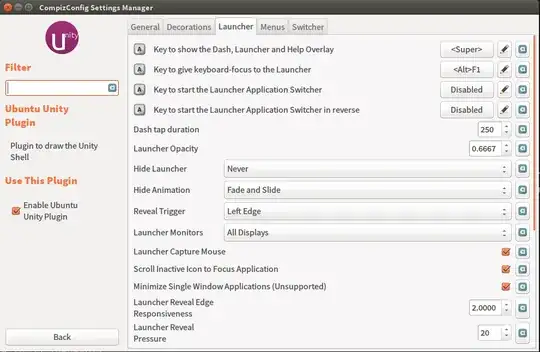
sudo apt-get install compizconfig-settings-managerSet super key as the option to start the launcher


David Foerster
- 36,890
- 56
- 97
- 151

Anurag Soni
- 516
9
I had this same issue with my new XPS13 that came pre-installed with 16.04. Dell has an official support page which explains how to remap the super key to open the dashboard.
How to enable the Ubuntu super key on Dell OEM Ubuntu installations
The Dell OEM Ubuntu operating system allows for the set-up of a Super key, which will function similar to the Windows key or start menu button on the Windows operating system. This article walks you through enabling and configuring the use of this super key on computers with the Dell OEM Ubuntu operating system installed.
How to enable the Ubuntu super key
You may find that the Super key on the keyboard which is generally used to open the Start Menu on windows machines or the Ubuntu Dash (menu) on Dell OEM Ubuntu installations does not function upon boot. Dell is unable to ship OEM Ubuntu systems with the Super key enabled on non-Windows operating systems.
The guide below provides one method to enable the menu button and map its function to open the dash.
Open a Terminal (Figure 1):
Remove the package named
dell-super-keywith the following command (Figure 2):sudo apt-get remove dell-super-key –yEnter the user password when prompted and confirm the install by pressing y on the keyboard.
Next install a utility that will map the super key’s function to open the Dash menu by typing in the following command (Figure 3):
sudo apt-get install compizconfig-settings-manager -y
Remove the input rule that blocks the super key from being mapped with the following command (Figure 4):
sudo rm –rf /usr/share/gconf/defaults/40_oem-superkey-workaround
Reboot the computer and log in.
Open
ccsmby searching for it in the Dash the same way we opened the terminal in step 1.In CCSM, also known as Compiz Config Settings Manager, find the Ubuntu Unity Plugin under the Desktop category as shown (Figure 5):
Next, disable the launcher’s current mapping by following the steps below (Figure 6):
- Click on the Launcher tab.
- Click on the button to the right of the first option labeled key to show the dash.
- On the Edit Key dialogue box, un-check the Enabled setting.
- Click OK.
Finally, to enable the super key’s Dash function, follow the steps below (Figure 7):
- Click on the button to the right of the first option labeled key to show the dash.
- Re-check the Enabled setting in the Edit Key dialogue box.
- Click on the Super button so that it is highlighted green.
- Confirm the example mapping displayed shows
< Super >.- Click OK.
Now test the super key to see that it opens the Dash Menu.


I'm assuming the process will be the same for 14.04.
David Foerster
- 36,890
- 56
- 97
- 151

Asim
- 91
2
Before you can configure the setting in compizconfig-settings-manager, you need to enable the 'unityshell' plugin. To do that, go to preferences -> Plugin List and disable 'Automatic plugin sorting'. Then move the 'unityshell' plugin over to the enabled side. Leave preferences and search for unity. The settings are there.

Matthew
- 21
1
There's a scripted way to enable the super key without installing compizconfig-settings-manager
sudo rm -rf /usr/share/gconf/defaults/40_oem-superkey-workaround
sudo apt-get remove -y dell-super-key
dconf reset /org/compiz/profiles/unity/plugins/unityshell/show-launcher

0
To launch the compizconfig-settings-manager, you need to run the ccsm command. Then, as said by Matthew, you have first to enable the unityshell in 'Preferences -> Plugin list'. Then set the Super key to start the lancher and disable back the unityshell plugin. Indeed, on my machine, the unityshell plugin was hiding the titles of my windows making things unusable.
