Step 1: Download the theme file
Go to Firefox Themes website and download the xpi file of your favorite theme, say Arc Theme.
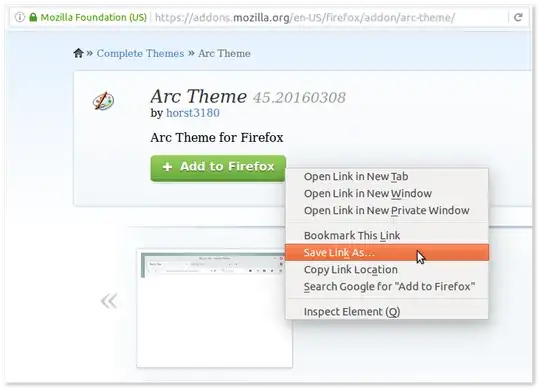
Step 2: Install the theme for all users
Open the downloaded theme file with Archive Manager.
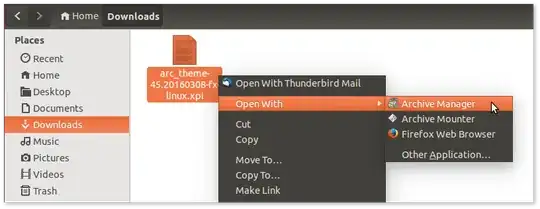
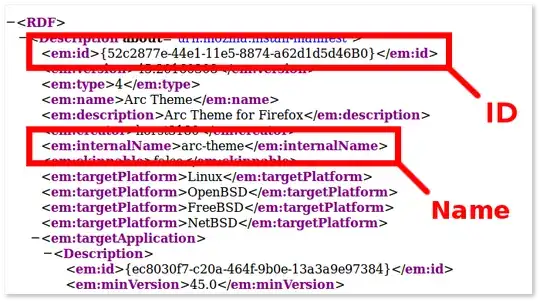
You'll see an install.rdf file inside. Open it too and copy the ID between the first <em:id> and</em:id> you find, which in Arc Theme's case is {52c2877e-44e1-11e5-8874-a62d1d5d46B0}. Note the theme's internal name too, you'll need it later.
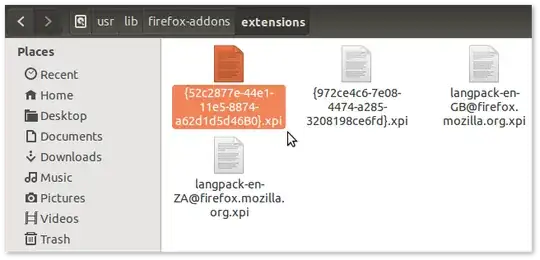
Rename the theme's xpi file with the ID you just copied. Then place the renamed xpi file in /usr/lib/firefox-addons/extensions/. To do so, open the Terminal and run this command:
pkexec env DISPLAY=$DISPLAY XAUTHORITY=$XAUTHORITY nautilus /usr/lib/firefox-addons/extensions/
and copy the xpi file ({52c2877e-44e1-11e5-8874-a62d1d5d46B0}.xpi in Arc Theme's case) to the File Manager window that opens up.
Step 3: Set the theme as default
Create a theme.js file (or a .js file with any name you like) in /usr/lib/firefox/browser/defaults/preferences/. To do so, open the Terminal and run this command:
pkexec env DISPLAY=$DISPLAY XAUTHORITY=$XAUTHORITY gedit /usr/lib/firefox/browser/defaults/preferences/theme.js
When the preferences file gets opened in Text Editor, copy and paste this into it:
pref("general.skins.selectedSkin", "arc-theme");
But, don't forget to replace arc-theme with the theme's internal name you saw in install.rdf!
Okay, that's all. Firefox is now set to use your favorite theme by default! Tested and verified on Ubuntu 14.04LTS with Firefox 45.

Background
Solus Project uses Firefox as it's default browser, but with it's theme set to Arc Darker 'out of box'. So, I poked around their firefox and arc-firefox-theme packages, found out how it works and then reproduced the method on Ubuntu.


