This is a longstanding (reported October, 2012), incredibly overlooked bug: see https://askubuntu.com/a/629043/16395. It will be fixed in the next release.
The solution is to use gparted, or format the device with command-line:
mkfs.ext4 /dev/device
(necessary sudo and device name omitted for obvious reasons).
Anyway, I strongly advise against using a whole, unpartitioned device. It will probably not automount or misbehave in a lot of cases. Create a partition table, one big partition, and format it --- you'll lose a couple of megabytes but you'll have a much more standard device.
To use gparted (short guide because How to format a USB flash drive? has a video --- I hate that...)
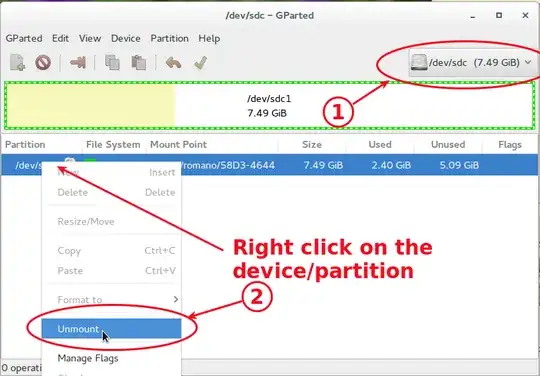
After started gparted, remember to (1) choose the right device (triple check, and then again) and (2) unmount it if mounted (you can say it's mounted because then option like partition, format, etc are dimmed):
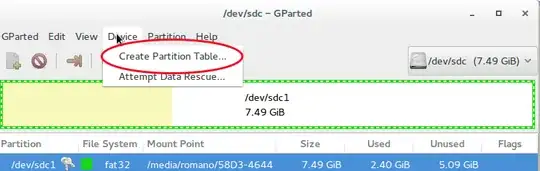
then create a partition table if needed:
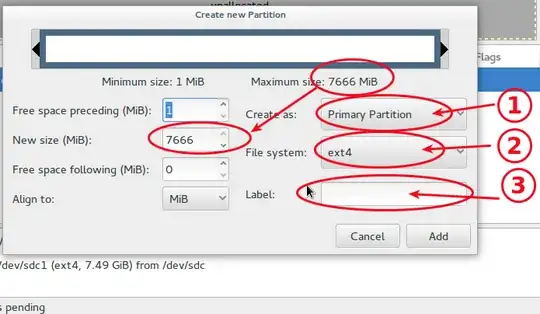
and create a big partition with Partition->New. Choose (1) a primary partion, the (2) right type, and if you add a label in (3) this will be the name of the device when automounted.
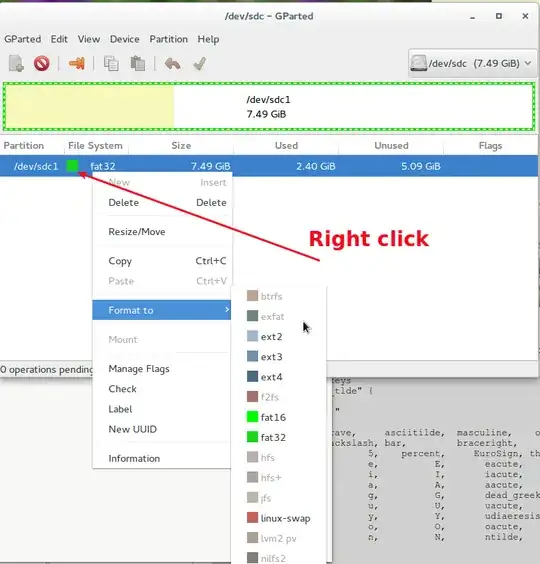
...and then format it:
Notice that gparted will not do all the operation instantly. It will create a list in the bottom window...:

...and to really do it you have to choose Edit->Apply all.. :
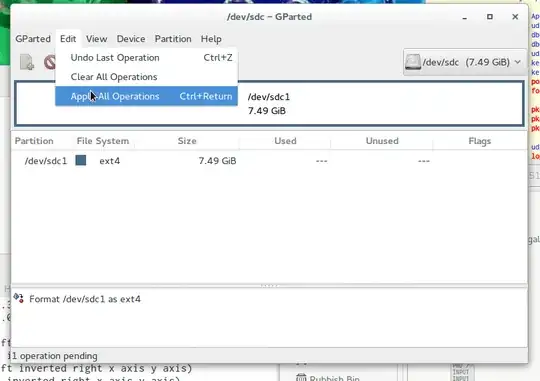
... you're done!
And a final note. If you format your filesystem as ext4, you have to change the ownership of its root directory after the formatting --- otherwise it will be owned by root.
For vfat and msdos-like filesystems this is not a problem, because the auto-mounter will force the ownership to you anyway. In the case of unix-like filesystem this will not happen. So after you mount your new device, you have to
sudo chown $USER /media/$USER/newdevice/.
...and then be sure that you have the same UID on all the machines you use.
 This drive has no partitions currently and I have no need for


