I have 2 unallocated partitions in my dual boot laptop. I want to add these two unallocated partitions to "/dev/sda5" partition. I to do in GParted. 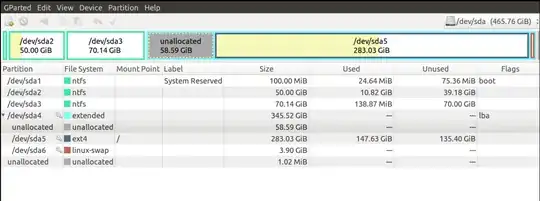
Asked
Active
Viewed 1,739 times
0

Ramesh Manda
- 49
3 Answers
0
To expand in GParted, the partition needs to be unmounted. So you cannot resize root (/) from GParted. You can try the resize2fs program from the command line (after using fdisk to recreate the partition to the larger size with the same starting cylinder). That only works if the free space comes after the partition. So, in your case, the only option is to reboot to a live USB, resize the partition using GParted like @ryekayo said. This will cause your filesystem's UUID to change, so you will have to change the UUID in your fstab, update GRUB, etc. (see this answer). It would be simpler to backup your home and reinstall.


0
My suggestion is that:
Create a new partition.
Move your /home to her.
You create the partition with ext4 from gparted. (/dev/sda?)
You open a terminal and run:
sudo su
mkdir /media/hometemp
mount /dev/sda? /media/hometemp
cd /home
cp -ax . /media/hometemp
cd /
mv /home /home.old
mkdir /home
umount /dev/sda?
mount /dev/sda? /home
blkid /dev/sda?  &&(The output will say: xxxxxxxxxxxxx)
nano /etc/fstab
&&Add these lines:
---------------------
#/dev/sda? was /home
UUID=xxxxxx /home ext4    defaults        0       2
---------------------
&&Save file (Control+O)
&&Close nano (Contro+X)
rm /home.old
reboot

kyodake
- 17,808
0
Here's what you need to do.
NOTE: we're going to be moving
/dev/sda5around. This process will take a long time because your partition is pretty big. It can take like 3 hours or something. Be prepared. Also, backup everything! I'm not responsible if something goes wrong.
Boot into a LiveUSB/CD. This is done by creating a bootable USB/CD of Ubuntu, as if you're going to install Ubuntu, but you'll choose Try Ubuntu instead of installing it.
- This runs Ubuntu off the USB/CD, think of it as "running Ubuntu in RAM". This will allow us to partition your hard disk. You have to do this because you're going to resize the main partition of your installed Ubuntu (called the "root partition", denoted by
/).
- This runs Ubuntu off the USB/CD, think of it as "running Ubuntu in RAM". This will allow us to partition your hard disk. You have to do this because you're going to resize the main partition of your installed Ubuntu (called the "root partition", denoted by
Open Gparted. If it's not installed, install it using
sudo apt-get install gparted.Right click on
/dev/sda5and click Resize/Move. Drag the left arrow to the left to take over that empty space (grey area). If that doesn't work, then you'll have to first drag the box to the left, then drag the right arrow to the far right. If that doesn't work, then I think you'll have to do it in two steps. 1) Drag box to right. Click OK. 2) Drag arrow to right.Take a look at the GParted window now. You'll see that
/dev/sda5has been resized. We're not going to do anything with the other unallocated space of size 1MB because moving it around will make the process longer, and it's useless for 1 megabytes =/.Once you're satisfied, click Apply to apply the changes we did and start the resizing. This is the part that will probably take a long time. Make sure your laptop is plugged in to a power source.
Run Boot Repair. This will fix boot issues because we moved
/dev/sda5. You can install Boot Repair using the following commands:sudo add-apt-repository ppa:yannubuntu/boot-repair sudo sed 's/trusty/saucy/g' -i /etc/apt/sources.list.d/yannubuntu-boot-repair-trusty.list sudo apt-get update sudo apt-get install -y boot-repair && (boot-repair &)
Click on "Recommended Repair" when it opens.
Reboot your machine. Remove the USB/CD. You should now have a resized /dev/sda5.

Alaa Ali
- 32,213