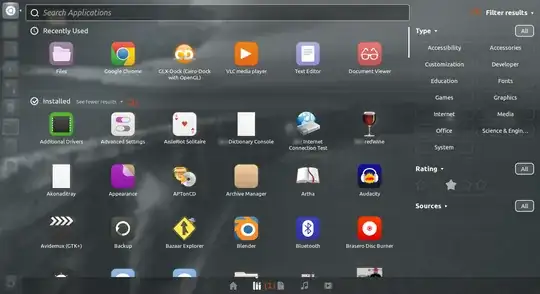
This is quite a hacky answer.
I would suggest you assign this script to another key, such as a function key. I went for F3 because it doesn't do much in any applications I use.
You need to install xdotool:
sudo apt-get install xdotool
First run the commands
touch .dashopen
gedit .dashopen
and write into it
closed
And the commands
touch .filteropen
Now you need to create a cron job. Run:
crontab -e
and into it, write
@reboot echo 'closed' > .filteropen
then do
touch dasha.sh
gedit dasha.sh
into that you need to put the following:
#! /bin/bash

#DASHOPEN

# get the state of the dash.
do=$(<.dashopen)
fo=$(<.filteropen)

# if it is closed:
if [ $do = 'closed' ]; then
    # open the applications pane
    xdotool key super+a
    # and record that it is open
    echo 'open' > .dashopen
# if it is open
else
    # close it with the super key
    xdotool key super
    # record that it is closed
    echo 'closed' > .dashopen
fi

#FILTEROPEN

# if it is closed:
if [ $fo = 'closed' ]; then
    # get the mouse location
    eval $(xdotool getmouselocation --shell)
    # move to the filter button and click
    xdotool mousemove 1000 60 # CHANGE THIS LINE TO WORK ON YOUR SCREEN.
    # click after 1 second
    sleep 1 && xdotool click 1
    # and record that it is open
    echo 'open' > .filteropen
    # move back to original location
    xdotool mousemove $X $Y
fi
make it executable:
chmod +x dasha.sh
Now you need to add the keyboard shortcut:
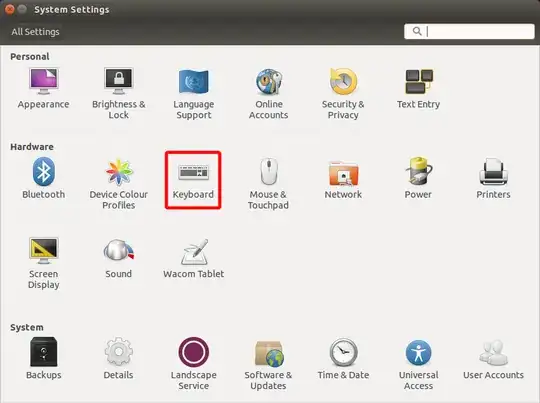
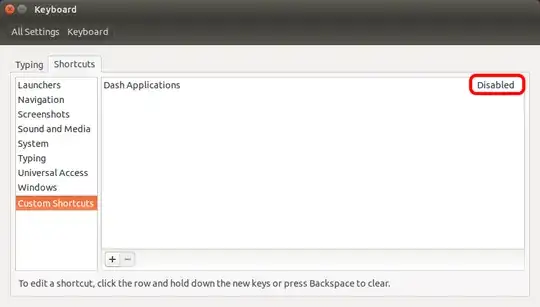
Open system settings, and click keyboard.
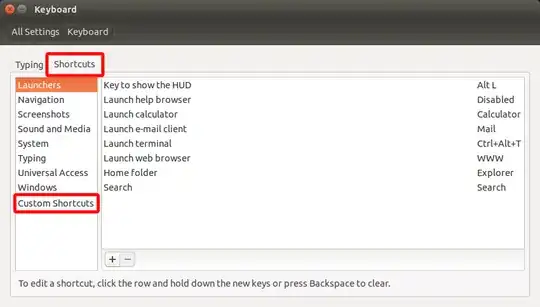
Click Shortcuts, then custom shortcuts.
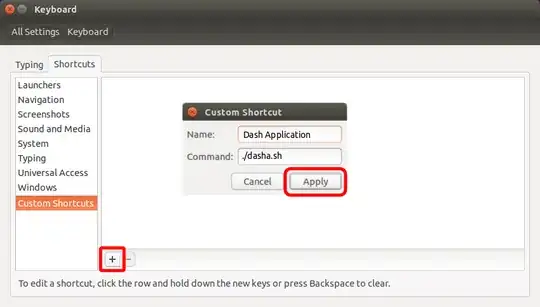
Click [+] then type the following:
Dash Application
./dasha.sh
Click disabled and press your chosen shortcut key:
Please comment if I've made a mistake