I recently installed Saucy Salamander on my computer. Previously in Ringtail, Super+D used to show the desktop. However for this release, the Super+D does not seem to work properly... Is it a bug?
Asked
Active
Viewed 7.9k times

9 Answers
102
Super + D doesn't work starting with Ubuntu 13.10. Use Ctrl + Super + D instead, I tested it and it works.
How to change the keys:
Open the Dash and type keyboard. There should be an app called Keyboard. Click on it and then go to the Shortcuts tab. Click on the Navigation list entry and scroll down until you see Hide all normal windows, click on it and create a new shortcut, for example:
Super + D
And that's it, you're done.

edwin
- 3,829

Steam gamer
- 1,016
41
It is not a bug. In order to make Super+D shortcut to work you must to go to System Settings → Appearance, select Behavior tab and tick And show desktop icon to the launcher:
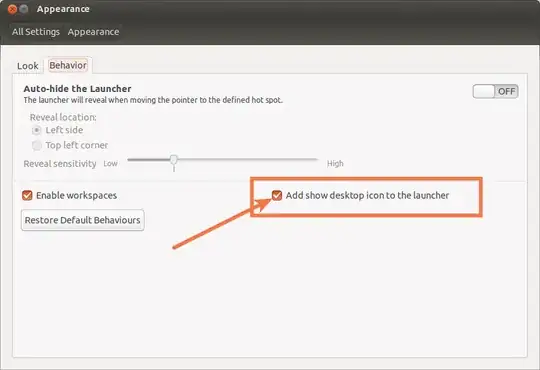
If you don't like to have the desktop icon on your launcher, then use Ctrl+Super+D shortcut.
Or you can use Alt+Tab to switch to desktop:
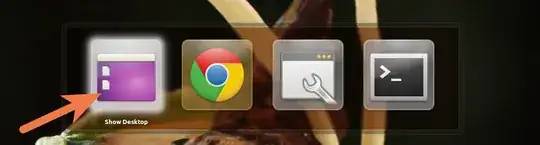

Radu Rădeanu
- 174,089
- 51
- 332
- 407
10
With the CompizConfig Settings Manager, you can enable the Super + D shortcut to show desktop without having that annoying icon in the launcher.
Just open CompizConfig and go to Desktop >> Ubuntu Unity Plugin >> General and change the show desktop shortcut.  In the Switcher tab there, you can also disable having the Desktop icon in the Alt-Tab menu.

Tshilidzi Mudau
- 4,171

Prime624
- 409
3
I've experienced the same issue with Ubuntu 17.04, but managed to fix it by following the instructions suggested by Akronix.
The steps are as follows:
Install CompizConfig Settings Manager by typing
sudo apt-get install compizconfig-settings-manager- Run the manager, type "unity" in the Filter text field and select Ubuntu Unity Plugin
- Find Show Desktop in the list and update it with the desired combination
Thanks to Akronix for finding the solution.


2
Ubuntu 18.04 L.T.S.
Go to Settings → Devices → Keyboard → Navigation section.
Click "Hide all normal windows" which is probably set to "disabled". Enter your new keyboard shortcut, which I set to Ctrl+Alt+D.
Voila! Instant desktop!

BeastOfCaerbannog
- 16,703

salmmus
- 93
2
For 11.10 and 12.10
Control-Alt-D shows the desktop for me
For 12.04 ,13.04 and 14.04
Control-Super-D works for me

Devendra Chhaiya
- 131
1
The official hotkey to show desktop in Ubuntu is Ctrl + Super + D.
But if you want to use Super+D, you can try my steps:
1. Open dconf Editor
2. Go to com => canonical => unity => launcher.
3. Click on favorites's value column and go to eol
4. Add , 'unity://desktop-icon' before ].
Now you see Show Desktop shortcut on Unity Launcher. In the future, you can use Super+D to show desktop.
Tshilidzi Mudau
- 4,171

ansidev
- 252
0
Rephrasing @Radu Rădeanu's answer,
Step 1: Change the shortcut to Super + D in settings->keyboard->shortcuts->Navigation->"Hide all normal windows.
Step 2: Go to Settings->Appearance->Behavior, tick Add show desktop icon to launcher.
Now it defenitly works

anuragvv
- 1
0
1 - System Settings → Appearance
2 - 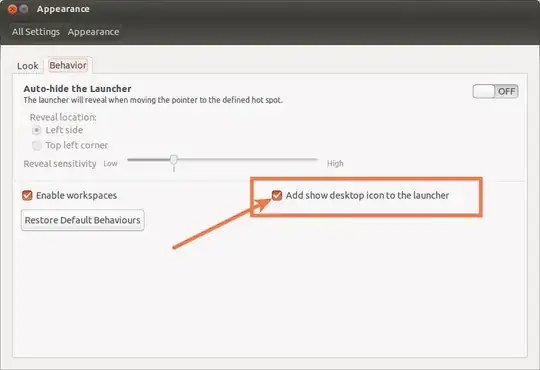
3 - run on command: gsettings get com.canonical.Unity.Launcher favorites
4 - copy the given list and delete 'unity://desktop-icon'
5 - run on command: gsettings set com.canonical.Unity.Launcher favorites [GIVEN LIST WITHOUT 'unity://desktop-icon']
6 - CompizConfig → General Options → Key Bindings
7 - Set "Show desktop" shortcut
Cheers.

Victor Oliveira
- 101