How things look like on Ubuntu 23.10
This is how things look like now on a working setup between two Ubuntu 23.10 and topology:
Internet --- Wi-Fi --- Computer 1 --- Ethernet --- Computer 2
Computer 1
Open Settings -> Network.
Click the cog under Wired:
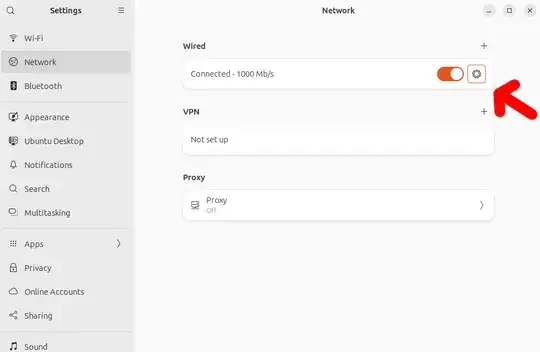
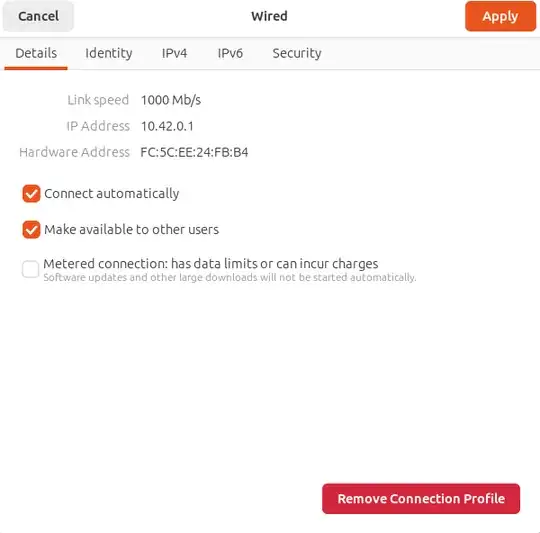
I don't think I changed anything here:
Select "Shared to other computers" (TODO how to do this from CLI? https://unix.stackexchange.com/questions/243408/share-wlan-connection-to-ethernet-using-command-line )
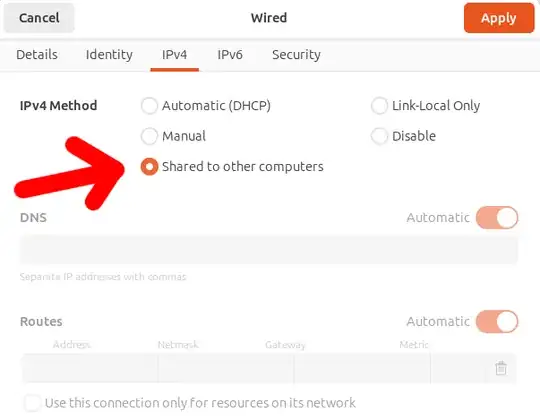
And then "Apply".
Next you also need:
sudo sysctl net.ipv4.ip_forward=1
If you set it to 0 which seems to be the default, then things don't work because "obviously" Computer 1 won't forward the packets from Computer 2 as we want, and the GUI procedure does not seem to affect it which is a shame. To make it permanent across reboots uncomment in /etc/sysctl.conf:
# Uncomment the next line to enable packet forwarding for IPv4
#net.ipv4.ip_forward=1
Computer 2
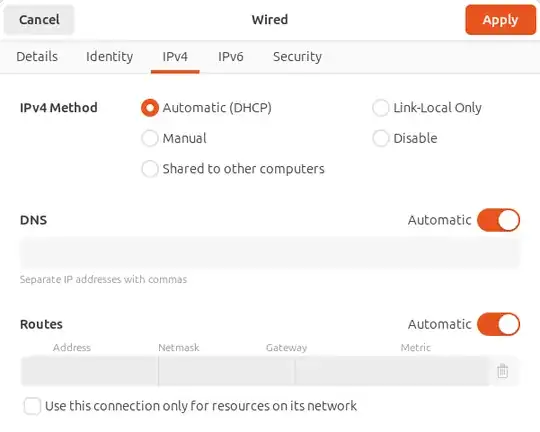
I don't think I changed anything in Computer 2, it's just set at "Automatic (DHCP)"
After this, Computer 2 can now connect to the Internet through Computer 1, e.g.:
ping example.com
Inspecting what the network looks like
In Computer 1:
ip a
shows:
2: enp1s0f0: <BROADCAST,MULTICAST,UP,LOWER_UP> mtu 1500 qdisc pfifo_fast state UP group default qlen 1000
    link/ether fc:5c:ee:24:fb:b4 brd ff:ff:ff:ff:ff:ff
    inet 10.42.0.1/24 brd 10.42.0.255 scope global noprefixroute enp1s0f0
       valid_lft forever preferred_lft forever
3: wlp2s0: <BROADCAST,MULTICAST,UP,LOWER_UP> mtu 1500 qdisc noqueue state UP group default qlen 1000
    link/ether 04:7b:cb:cc:1b:10 brd ff:ff:ff:ff:ff:ff
    inet 192.168.1.123/24 brd 192.168.1.255 scope global dynamic noprefixroute wlp2s0
       valid_lft 81730sec preferred_lft 81730sec
    inet6 fe80::3597:15d8:74ff:e112/64 scope link noprefixroute
       valid_lft forever preferred_lft forever
and Computer 2:
2: enp0s31f6: <BROADCAST,MULTICAST,UP,LOWER_UP> mtu 1500 qdisc pfifo_fast state UP group default qlen 1000
    link/ether 54:e1:ad:b5:5b:08 brd ff:ff:ff:ff:ff:ff
    inet 10.42.0.70/24 brd 10.42.0.255 scope global dynamic noprefixroute enp0s31f6
       valid_lft 2914sec preferred_lft 2914sec
    inet6 fe80::a64f:794b:b8fa:5501/64 scope link noprefixroute
       valid_lft forever preferred_lft forever
so we understand that these IPs were automatically negotiated with DHCP.
We can also see the IP assigned to Computer 2 from Computer 1 with:
sudo bash -c 'tail -n+1 /var/lib/NetworkManager/*.leases'
which outputs something like:
1707478545 54:e1:ad:b5:5b:08 10.42.0.70 ciro-p51 01:54:e1:ad:b5:5b:08
so we can also see the IP 10.42.0.70 is assigned to Computer 2. See also: How do I show active dhcp leases
For fun we can also now connect from one computer to the other with those IPs, e.g. from 1 to 2:
ping 10.42.0.70
and from 2 to 1:
ping 10.42.0.1
And for megafun, we can also run Wireshark on Computer 1 and watch as it receives and forward the ping packets from Computer 2. We watch on all interfaces with:
sudo wireshark -k -f 'icmp' -i enp1s0f0 -i wlp2s0
to capture both the Ethernet and Wi-Fi traffice. Then each ping request produces 4 lines on Wireshark:
         Time         Source           Dest             Hw src             Hw dst  Protocol
1 0.000000000     10.42.0.70  93.184.216.34  54:e1:ad:b5:5b:08  fc:5c:ee:24:fb:b4      ICMP  request  id=0x79ee, seq=8/2048, ttl=64 (reply in 4)
2 0.000074761  192.168.1.123  93.184.216.34  04:7b:cb:cc:1b:10  9c:53:22:17:e2:0e      ICMP  request  id=0x79ee, seq=8/2048, ttl=63 (reply in 3)
3 0.098882299  93.184.216.34  192.168.1.123  9c:53:22:17:e2:0e  04:7b:cb:cc:1b:10      ICMP  reply    id=0x79ee, seq=8/2048, ttl=51 (request in 2)
4 0.098952451  93.184.216.34     10.42.0.70  fc:5c:ee:24:fb:b4  54:e1:ad:b5:5b:08      ICMP  reply    id=0x79ee, seq=8/2048, ttl=50 (request in 1)
so we can beautifully watch as Computer 1 receives Ethernet frames from Ethernet, opens them up, wraps them into new frames for Wi-Fi, and then does the same in reverse when the reply comes from example.com.
Tested with computer 1 = Lenovo ThinkPad P14s, Computer 2 = Lenovo ThinkPad P51 with Wi-Fi turned off.
Related


