25

I just installed Ubuntu and typed in sudo apt-get install open-vm-tools

I can change my resolution to 1920 x 1200, but not 1920 x 1080. Any ideas?

I've tried this, and this but no luck. The second link is for VirtualBox

I've tried changing the VMWare settings on my host computer (Windows 8) and on my Guest OS (Ubuntu) with no luck. Really need this to work.

I don't think I'm running the vm tools correctly. Apparently I'm supposed to run the .pl file, but when I double click it, a text file just opens up.

xrandr:

xrandr
Screen 0: minimum 1 x 1, current 1360 x 768, maximum 8192 x 8192
Virtual1 connected 1360x768+0+0 (normal left inverted right x axis y axis) 0mm x 0mm
   800x600        60.0 +   60.3  
   2560x1600      60.0  
   1920x1440      60.0  
   1856x1392      60.0  
   1792x1344      60.0  
   1920x1200      59.9  
   1600x1200      60.0  
   1680x1050      60.0  
   1400x1050      60.0  
   1280x1024      60.0  
   1440x900       59.9  
   1280x960       60.0  
   1360x768       60.0* 
   1280x800       59.8  
   1152x864       75.0  
   1280x768       59.9  
   1024x768       60.0  
   640x480        59.9  
Virtual2 disconnected (normal left inverted right x axis y axis)
Virtual3 disconnected (normal left inverted right x axis y axis)
Virtual4 disconnected (normal left inverted right x axis y axis)
Virtual5 disconnected (normal left inverted right x axis y axis)
Virtual6 disconnected (normal left inverted right x axis y axis)
Virtual7 disconnected (normal left inverted right x axis y axis)
Virtual8 disconnected (normal left inverted right x axis y axis)
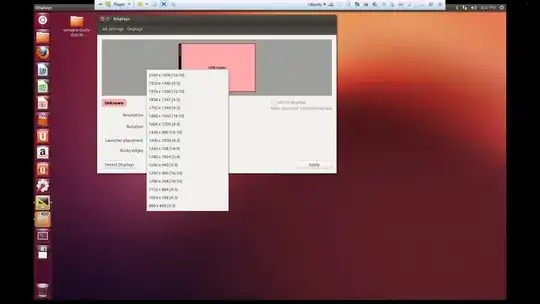
enter image description here

EGHDK
  • 377

8 Answers8

52

My solution:

Create a text file with .sh extension. For example setscreen.sh

Insert the following text and save.

xrandr --newmode "1920x1080"  173.00  1920 2048 2248 2576  1080 1083 1088 1120 -hsync +vsync
xrandr --addmode Virtual1 1920x1080
xrandr --output Virtual1 --mode 1920x1080

Run this .sh file as an executable. Screen should go to 1920x1080.

Use "startup applications" to launch the file at startup.

Note: I am running Mint 17 but this should work fine in Ubuntu.

guntbert
  • 13,475
Mike
  • 521
9

I went to the same problem using Linux Mint Cinnamon 17.3 under VMware Player 12.1.

Reading more about open-vm-tools on the VMware KB, I found that using open-vm-tools-desktop package is the recommended way to work around this.

So I recommend you also execute a sudo apt-get install open-vm-tools-desktop. But keep in mind that the resolution will be auto adjusted only when on fullscreen mode, not when on windowed mode.

4

You can add a mode to xrander. For you, the command would be something like:

xrandr --newmode "1920x1080_60.00"  173.00  1920 2048 2248 2576  1080 1083 1088 1120 -hsync +vsync

You might need to specifically state the output by adding the --output Virtual1 option. I calculated this commands arguments with cvt 19200 1080 60. They could be different for you. Then just switch to that mode with this

xrandr --output Virtual1 --mode 1920x1080 --rate 60
dward
  • 2,910
1

There is a workaround by a guy called "dts-dreamer". It's attached as a patch on the bugtracker.

Now for the issue: It's a regression from 12.04 and it's still in the code as of 13.04.
The bug received a confirmed state on the bugtracker, but Canonical didn't comment yet.
Solution? None that I know.

The xorg.conf file also works for only some of the variants. Like Ubuntu itself and Kubuntu.
Please flag the bug if it affects you (and if you have a Launchpad account.)

Apache
  • 5,102
1

I ran into that same problem. I had vmware tools installed and could not get it to go to full screen. What you want to try is in virtual machine (ubuntu) change the resolution there. It worked for me. For some reason it did not dynamically recognize the resolution i wanted and I had to manually change it for ubuntu.

Parnit
  • 111
1

Adding on to dward's answer, I found that I had to use this command:

xrandr --addmode Virtual1 1920x1080_60

after I had entered dward's first command:

xrandr --newmode "1920x1080_60.00"  173.00  1920 2048 2248 2576  1080 1083 1088 1120 -hsync +vsync

Then I was able to select the resolution in settings.

1

This worked for me:

  1. Install open-vm-tools-desktop and reboot

    apt install open-vm-tools-desktop && reboot

  2. Install fuse and reboot

    apt install fuse && reboot

  3. set VM View->Autosize to Autofit Guest

I tried installing everything at once and then rebooting and resizing, it didn't work for some reason, maybe because of the apt upgrade I had done before installing open-vm-tools-desktop. The above solution worked when I did that before any package upgrade.

0

Power on the virtual machine. Log into the virtual machine using an account with administrator or root privileges. Go to Virtual Machine > Install VMware Tools (or VM > Install VMware Tools).

Note: If you are running the light version of Fusion, a version of Workstation without VMware Tools, or VMware Player, you are prompted to download VMware Tools before they can be installed. Click Download Now to begin the download.

Open the VMware Tools CD mounted on the Ubuntu desktop. Right-click the file name that is similar to VMwareTools.x.x.x-xxxx.tar.gz, click Extract to, and select the Ubuntu Desktop to save the extracted contents.

The vmware-tools-distrib folder is extracted to the Ubuntu Desktop. To install VMware Tools in Ubuntu: Open a Terminal window. Run this command to navigate to the vmware-tools-distrib folder:

cd Desktop/vmware-tools-distrib

Run this command to install VMware Tools:

sudo ./vmware-install.pl -d

Note: The -d switch assumes that you want to accept the defaults. If you do not use -d, press Return to accept the defaults or supply your own answers.

Enter your Ubuntu password. Restart the Ubuntu virtual machine after the VMware Tools installation completes.

Klyn
  • 3,381