9

I have a Samsung CLP-325w printer. I downloaded the .tar.gz file from their website, but I can't seem to figure out how to install it.

Here's the link to the driver's tarball

I've been following this guide to install it, but I get stuck at the ./configure command. It says bash: ./configure: No such file or directory

What am I doing wrong? If I'm in the wrong folder, which folder is the correct one?

I should note that I was able to install the drivers via Ubuntu's generic drivers, but I'd really like to know how to do this for future and also to make sure I have the latest drivers.

Tim
  • 33,500
Ryan M.
  • 103

4 Answers4

6

Installing the driver

  1. Make sure that the machine is connected to your computer and powered on.

  2. From the Samsung website, download the Unified Linux Driver package to your computer.

  3. Right-click the Unified Linux Driver package and extract the package.

  4. Open one Terminal and enter the following commands:

    cd PSU_1.10.tar.gz (the uncompressed folder)

    cd cdroot && cd Linux && cd psu

    sudo ./install.sh

  5. Then it'll ask your password, enter it.

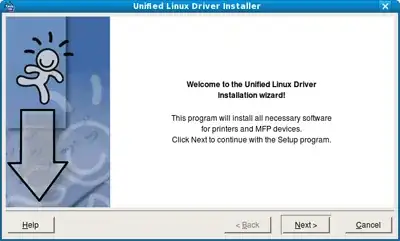
    Now you should see the following image:

installation_windows

  1. Click on Next to start the installation.
  2. When the installation is complete, click Finish.

Source: Samsung Driver Manual

Lucio
  • 19,191
  • 32
  • 112
  • 191
6

I used a similar method to install a Samsung M2020W (Express).

  • Download the driver. (driver for Samsung M2020W)
  • Move it to the desktop.
  • Extract the folder to the desktop.
  • Open a terminal window by pressing Ctrl+Alt+T
  • cd Desktop
  • cd to the folder (in my case, the folder was called uld).
  • Run command sudo ./install.sh.

Agree with all the "y" prompts, and job done. There was no GUI to run.

Added the printer in the usual way.

Sadegh
  • 1,125
6

I used the The Samsung Unified Linux Driver Repository.

You install it as follows:

sudo bash -c 'echo "deb http://www.bchemnet.com/suldr/ debian extra" >> /etc/apt/sources.list';  
sudo wget -O - http://www.bchemnet.com/suldr/suldr.gpg | sudo apt-key add - ;  
sudo apt-get update
sudo apt-get install suld-driver-4.01.17;
Pablo Bianchi
  • 17,371
Huge
  • 644
1

The accepted answer by Lucio didn't work for me. I ended up having to use The Samsung Unified Linux Driver Repository, like Huge did in his answer, but the instructions I came up with for myself are slightly different:

Essentially following the steps here - http://www.bchemnet.com/suldr/

  1. Back up /etc/apt/sources.list to sources.list.bak
    • sudo cp /etc/apt/sources.list /etc/apt/sources.list.bak
  2. To /etc/apt/sources.list (root/sudo access required to edit), add the line: deb http://www.bchemnet.com/suldr/ debian extra
    • ex: sudo nano /etc/apt/sources.list, then type in the line and save and exit.
  3. Refresh your repository settings: sudo apt-get update
  4. Install the latest repository key: sudo apt-get install suldr-keyring
  5. Now install the proper driver!
    1. See here for repository information - http://www.bchemnet.com/suldr/repository.html
    2. See here for a list of supported printers - http://www.bchemnet.com/suldr/supported.html
  6. Find your required driver for your printer in the list of supported printers. Ex: for ML-331x the table recommends 3.00.90.
  7. Install this driver as follows: suld-driver-*; for example: sudo apt-get install suld-driver-3.00.90
  8. Now install the network printer via the “Printers” GUI in Xubuntu.
    • Example screenshots in Ubuntu shown here: https://askubuntu.com/a/513841/327339
      1. Start menu → “Printers” → Add → Printer → click “Network Printer”. Find the “Samsung ML-331x (SEC[mac_address_here], [IP_address_here])” and verify the MAC address and IP address in the name are the correct ones corresponding to the printer you want to install.
      2. Click “Forward” and it should automatically find the driver you just installed above and let you add the printer.
  9. Done!
Gabriel Staples
  • 11,502
  • 14
  • 97
  • 142