I would like to change the font in the Terminal, how can I achieve this?
Asked
Active
Viewed 3e+01k times


6 Answers
60
Bash terminal:
Menu, Edit => Profile Preferences => General tab; uncheck Use the system fixed width font, and select the font you want.
For general xterm terminal, you need to create a file ~/.Xresources, and add settings to it, such as xterm*font: Sublime\ Text\ 2-12 for 12 point (this is a guess, I don't know if it's totally correct).

Anwar
- 77,855

Marty Fried
- 18,944
38
Though you did not mention what font you are using or what terminal you are referring, I am giving a general answer to change font in gnome-terminal.
I am giving two ways to do this, though both are relatively close to each other
Formal way
- Open the terminal with pressing Ctrl + Alt + T.
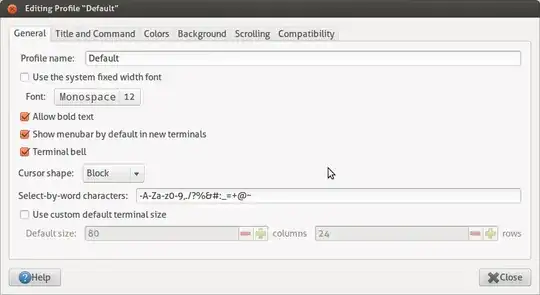
- Then go from menu Edit → Profiles. On the profile edit window, click on the Edit button.
- Then in the General tab, uncheck Use the system fixed width font, and then select your desired font from dropdown menu
Easier way
- Open the terminal with pressing Ctrl + Alt + T.
- Right click on the terminal, from the appeared popup menu, go to Profiles → Profile Preferences
- Then in the General Tab, uncheck Use the system fixed width font, and then select your desired font from dropdown menu.
I am giving two screenshots below:


11
Ubuntu 18.04 or higher
Now this setting is under
Edit->Preferences-> Unnamed-> Text -> Check Custom font


Hitesh Sahu
- 241
6
if you mean a server terminal, that is, no window system, just the console, I like this answer:
setfont /usr/share/consolefonts/UbuntuMono-R-8x16.psf
this is an example; you can see a list of available fonts like this:
ls /usr/share/consolefonts
and should you for some reason not have them, you can install them like this:
sudo apt-get install fonts-ubuntu-font-family-console
note that you may need to put the setfont command in your .profile or .bashrc as it may need to be run upon every login

jmarina
- 1,075
1
For Ubuntu 17.04 with GNOME Terminal 3.20.2, the options are a bit different. From the menu, go to Edit -> Profile Preferences -> General tab. In the Text Appearance section, select the Custom font option, click on the selected font, and then reduce the font size number at the bottom of the new window.

pattivacek
- 1,117
0
For newcommers to this issue , it seems that you can just pick monospace fonts in gnome terminal. so if other answers wont work for you , you could install a monospace font , then go to Edit -> Profile Preferences -> General tab select your new installed monospace font. enjoy it.
See also this answer link
enjoy it.

Elcid
- 1