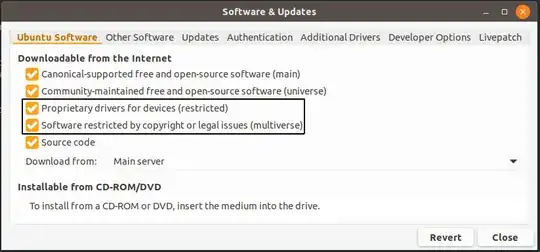
Please, make sure that proprietary drivers and restricted software repositories are enabled. You need to have these enabled in order for proprietary drivers to show up under additional drivers tab. To do this, please run in the terminal:
sudo software-properties-gtk
Then, make sure to enable the repositories by selecting the check marks like in the image below and clicking on Close when done:
Then, please click on Reload like in the image below:
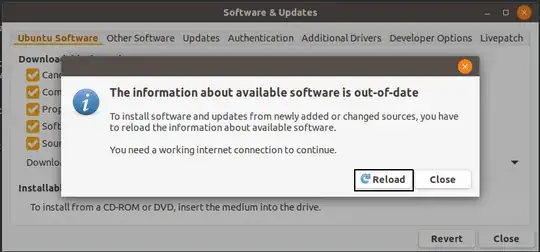
After that, please wait for the repositories to reload before you proceed to installing your GPU's drivers as usual.
Based on the output you posted of ubuntu-drivers devices:
The recommended proprietary NVIDIA driver for your system is nvidia-driver-430. You can install it like so:
sudo apt install nvidia-driver-430
You will need to reboot after that for the changes to take effect.
You can as well experiment with the other available proprietary NVIDIA drivers nvidia-driver-410, nvidia-driver-390, and nvidia-driver-415. like so:
sudo apt install nvidia-driver-VERSION_NUMBER
Replace VERSION_NUMBER with the version number you wand like 410, 390, or 415
Please be careful if you decide to install other versions that are not recommended for your system. Your desktop GUI might not work properly.
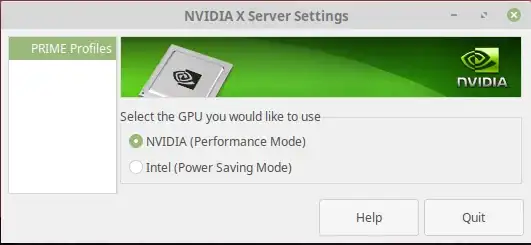
After installation and reboot you might need to select NVIDIA GPU and disable INTEL GPU if you have dual GPU. You can do this by running the following in the terminal:
sudo nvidia-settings
Then select the NVIDIA GPU like in the image below ( you might get a slightly different screen with more options ) but what you need to change is prime:
After that, please reboot your system.
Regarding the error message you get:
NVIDIA-SMI has failed because it couldn't communicate with the NVIDIA
driver. Make sure that the latest NVIDIA driver is installed and
running.
It appears that you have attempted to install, purge and reinstall different NVIDIA drivers too many times but not all of the attempts were successful, so your system ended up with mixed bits and pieces of every driver.
To fix this, you will need to purge every bit of NVIDIA software on your system, by running the following command in the terminal:
sudo apt purge nvidia-*
After that, please run the following command to install a clean copy of the NVIDIA drivers by running the following command in the terminal:
sudo ubuntu-drivers autoinstall
Then, please reboot your system after that for the new driver to be loaded.


