I am new to ubuntu and my friend told me to SSH into my IPod so i can put/remove songs on it.
I've been succesfully ssh'ing into it but i do not know how to copy and paste my songs from my Home Directory into my iPod. Any help would be greatly appreciated. I do know basic commands like ls, cd, pwd, etc. I do know the cp command but cannot utilize it.
Asked
Active
Viewed 3.1k times
6

guntbert
- 13,475

Gurjit Singh
- 61
4 Answers
9
Time to learn a new command! :)
To learn more about it:
man scp
Secure Copy allows you to copy the contents of your friends directories to your local system.
So you mention you are comfortable with using SSH. Let say that your friends IP address is 192.168.1.100. and your username is joe. The files on your friends computer are located in /share/music/.
Open a terminal window using "Ctrl-Alt-T" or use the Dash Search Bar
Now to copy individual files issue the following:
scp joe@192.168.1.100:/share/music/filename1.mp3 .
What this says is, ssh into your friend's computer at 192.168.1.100 with the username joe and copy the mp3 file /share/music/filename1.mp3 to your local present working directory (note the period)
You can actually specify a location to save the mp3 other than your present working directory
scp joe@192.168.1.100:/share/music/filename1.mp3 /var/tmp
So in the example above, I'm saving the mp3 to /var/tmp
Just make sure that you have proper permissions to the directory your saving too.
Now, to save whole directories, you need to use the recursive flag -r
scp -r joe@192.168.1.100:/share/music/album1 /var/tmp/
So now all the mp3's in /share/music/album1 will save to /var/tmp/

grooveplex
- 2,506
- 3
- 27
- 35

sfeole
- 981
5
You can use scp command in terminal if you want to, but you don't have to do it in terminal.
Just open a new Nautilus window and select Go - Location... from the menu. This will open an input box where you need to put the connection string, something like
sftp://user@ip.add.re.ss/path/to/directory
Hit Enter, it'll ask you for password, and that's it:
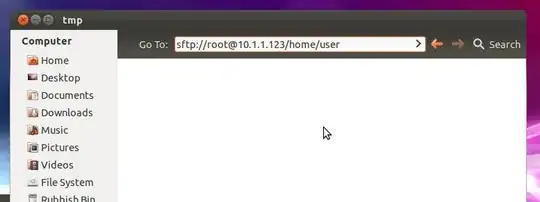
Then you can just drag and drop the files from another Nautilus window

Sergey
- 44,353
0
you can send a file with SCP too:
scp filename username@hostname:/path/to/send/to
You can also use an IP instead of host name:
scp filename username@10.0.0.1:/path/to/send/to
grooveplex
- 2,506
- 3
- 27
- 35

ActionParsnip
- 536
-1
Its easy. Suppose You need to move a file to secure directory. Use the following command after opening terminal (from the directory in which the file to moved is situated)--
my whole path was ziad@Cornelious:~/Work$ sudo mv master /var/www/html
In this case "master" folder was in "Work" directory/folder. Use the following command--
sudo mv master /var/www/html
here i moved master folder to html folder which is a secure folder.
