10

I freshly installed Lubuntu 18.10 with LXQT environment and here's my issue : I want to dim the backlight of my laptop with the keyboard shortcut (XF86) but when i press it, it changes the brightness(which seems to be a software change because it messes with gamma and contrast)

So i went to the keyboard shortcuts bindings to find the menu that changes what i want :
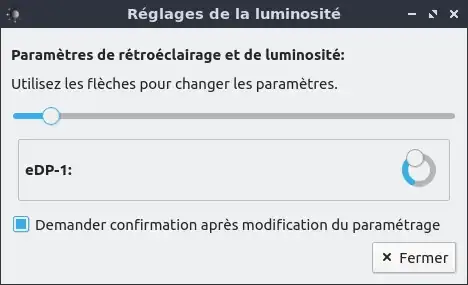
lxqt-config-brightness menu

^ the slider controls backlight (usual brightness) and the knob messes with contrast..

Here is the shortcut config menu :

lxqt shortcuts

However, there is no way i can find to inc or dec the slider instead of the knob, to have control over backlight. xbacklight and xrandr doesn't work as they output "no output with backlight property" but i can change backlight with echo 700 | sudo tee /sys/class/backlight/intel_backlignt/brightness which sets backlight to 700, but i don't know how to implement inc or dec on a shortcut with this :c

Teach me some unix please :)

10 Answers10

6

I had the same issue in Lubuntu 20.04. Solution:

  1. In terminal run: lxqt-config-globalkeyshortcuts and change:
    lxqt-config-brightness -d => lxqt-backlight_backend --dec
    lxqt-config-brightness -i => lxqt-backlight_backend --inc
  2. In terminal run: sudo chmod u+s /usr/bin/lxqt-backlight_backend to resolve root permission problem.

Info. I have this problem on ThinkPad T14s Gen 1 with AMD APU Ryzen processor. On T15p with an Intel processor, the problem does not occur.

5

The simplest way I have discovered that doesn't require sudo is to use pkexec lxqt-backlight_backend --inc to increase the backlight brightness and pkexec lxqt-backlight_backend --dec to decrease it.

You can add keyboard shortcuts for these commands in LXQt. I hope this will be fixed soon and it will become the default action for brightness adjustement keyboard combinations instead of the rather useless contrast regulation.

Poomex
  • 111
1

You can add the command lxqt-backlight_backend --dec to the 'shortcut config menu' to decrease the brightness and the command lxqt-backlight_backend --inc to increase it.

However, the commands need root permissions to run. One way to overcome this is to manually change the permissions of /sys/class/backlight/intel_backlight/brightness, but the change isn't permanent, since it will be reset after reboot. If I find a way to make the change permanent I will post it here.

1

I had the same issue for a very long time, but I finally solved it! I was searching for a solution when I found this: https://help.ubuntu.com/community/Lubuntu/Keyboard#Keyboard_shortcuts . And it says:

Control+F10

Laptop screen dim

Control+F11

Laptop screen brighten

I was curious about this shortcut key, because I used a different one to change my brightness. And as soon as I tried, an error popped up saying that xbacklight could not be found. This leaded me to the solution of our problem:

First, I installed xbacklight with the command sudo apt-get install xbacklight. Only this should've worked for me, but my xbacklight was always returning the following error when executed through the terminal:

No outputs have backlight property

So I googled it and found a solution: https://askubuntu.com/a/1060843 This answer solved the error for me. With xbacklight working, I just created shortcut keys for the following commands:

To increase brightness (-time 0 is optional, just for it to change instantly):

xbacklight -inc 10 -time 0

To decrease brightness (-time 0 is optional, just for it to change instantly):

xbacklight -dec 10 -time 0

This is incredibly practical as it doesn't require root to work, so it will work as soon as you add these shortcuts and will last forever (no sudo after reboot for it to work again :D ).

To summarize:

  1. Install the xbacklight package with:

    sudo apt-get install xbacklight
    
  2. Add the following command to your favourite shortcut keys to increase brightness:

    xbacklight -inc 10 -time 0
    
  3. Add the following command to your favourite shortcut keys to decrease brightness:

    xbacklight -dec 10 -time 0
    
  4. If the commands don't work, this might be the solution: https://askubuntu.com/a/1060843

References:

Eliah Kagan
  • 119,640
1

I find a fix in the most unusual way (am running lubuntu 20). Launch button >> preferences >> lxqt settings >> brightness settings. Change the brightness slide button...then click YES in the next popup! Now uncheck the button near the "require confirmation after settings change." Now the brightness shortcuts works perfectly.

Adam
  • 11
0

Using what you had already discovered worked, I tried on a Lubuntu 18.10 (live) system

echo `cat /sys/class/backlight/intel_backlight/brightness` +180000|bc |sudo tee /sys/class/backlight/intel_backlight/brightness

which would increase my brightness

and

echo `cat /sys/class/backlight/intel_backlight/brightness` -80000|bc |sudo tee /sys/class/backlight/intel_backlight/brightness

which likewise reduced my brightness.

I recommend you work out whatever value you're happy with, and use that (and probably the same for both unlike my testing).

You can then use the 'shortcut config menu' you've already found to create a keyboard shortcut you're happy with for both commands. I didn't try and replace my existing keys, just used a new keystroke that I could live with.

guiverc
  • 33,561
0

If you want to set the brightness to 50%, you can run:

lxqt-config-brightness -s 50

The -s option sets brightness from 1 to 100.

Eliah Kagan
  • 119,640
0

The native solution:

  1. in the grub config file add acpi_backlight=none at the end of "GRUB_CMDLINE_LINUX_DEFAULT=" line, e.g.: sudo nano /etc/default/grub

  2. update grub sudo update-grub [to update grub on other distros, pls search the appropriate command, e.g. sudo grub-mkconfig -o /boot/grub/grub.cfg for Arch/Manjaro or grub2-mkconfig in OpenSuse]

  3. on Lubuntu, in the Shortcut Keys config, instead of lxqt-config-brightness -d [or -i], use lxqt-backlight_backend --inc [or --dec]

userko
  • 1
0

I know it's old, but I'm leaving this here for the future.

On some laptops, this is already handled by the hardware. So the LXQt shortcuts just double it causing a two-step adjustment and it's visible in the /sys/class/backlight/brightness/acpi_video0/brightness.

I deleted both shortcuts from lxqt-config-globalkeyshortcuts and now it works with the single-step adjustment.

naryfa
  • 1
0

I had the same issue on Debian 12.7 and LXQT 1.2, brightnessctl worked for me.

sudo apt install brightnessctl

To configure the sortcuts:

lxqt-config-globalkeyshortcuts

In the configuration window, I changed the following:

For decreasing brightness I placed it with:

brightnessctl set 10%-

For increasing brightness I placed it with:

brightnessctl set +10%
DiegoG
  • 1