In WPF with RenderTransform can rotate controls approximately in this way:
<Label Width="50" Height="20">
    <Label.RenderTransform>
        <RotateTransform Angle="90" />
    </Label.RenderTransform>
</Label>
In this case the Label is rotated by 90 degrees. But objects of the Window can not be rotated because the Window chrome is still rendered by GDI right now.
In your case, I can advise to find / create / etc keyboard control for WPF that matched your requirements. For example, I found such a control by link:
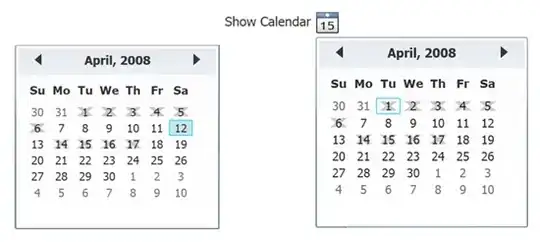
To add to the rotation of the control, I added two buttons: RotateOn180 and RotateOn360 in VirtualKeyboard.xaml. The keyboard itself is in the dock panel, so I wrote this:
<DockPanel Width="500" Height="200" RenderTransformOrigin="0.5,0.5">
    <DockPanel.RenderTransform>
        <RotateTransform x:Name="KeyboardRotation" Angle="0"/>
    </DockPanel.RenderTransform>

    ....
By clicking the button starts the animation, which changes the angle of rotation. Full additional code:
<Grid>
    <Grid.Triggers>
        <EventTrigger SourceName="RotateOn180" RoutedEvent="Button.Click">
            <BeginStoryboard>
                <Storyboard Storyboard.TargetName="KeyboardRotation" Storyboard.TargetProperty="Angle">
                    <DoubleAnimation From="0" To="180" Duration="0:0:0.5" />
                </Storyboard>
            </BeginStoryboard>
        </EventTrigger>

        <EventTrigger SourceName="RotateOn360" RoutedEvent="Button.Click">
            <BeginStoryboard>
                <Storyboard Storyboard.TargetName="KeyboardRotation" Storyboard.TargetProperty="Angle">
                    <DoubleAnimation From="180" To="360" Duration="0:0:0.5" />
                </Storyboard>
            </BeginStoryboard>
        </EventTrigger>
    </Grid.Triggers>

    <Button Name="RotateOn180" Content="RotateOn180" Width="80" Height="30" HorizontalAlignment="Left" />
    <Button Name="RotateOn360" Content="RotateOn360" Width="80" Height="30" HorizontalAlignment="Left" Margin="0,80,0,0" />

    <DockPanel Width="500" Height="200" RenderTransformOrigin="0.5,0.5">
        <DockPanel.RenderTransform>
            <RotateTransform x:Name="KeyboardRotation" Angle="0"/>
        </DockPanel.RenderTransform>

    ...Below is a standard code of project...
Output