33

I went to the Settingsmanager and selected Display. The external display was listed there. So I selected Use this output (see Screenshot) and after hitting apply the notebook screen was cloned to the external display.

But what I wanted was for it to be expanded, not cloned.

Unfortunately I cannot find any option for that.

Is there such an option?

Greatful for any hints!

Aufwind
  • 1,833

6 Answers6

37

If you ran into the same situation like me:

  1. Enter xrandr into your terminal and figure the name of your laptop screen and the name of your external screen. Mine were VGA-0 for the laptop and LVDS for the external one.
  2. While you are on it you can figure the resolutions supported by both devices.

  3. Create an executable script somewhere on your computer and name it e.g. dual_monitor.sh.

  4. Put the following commands into the script. The comments should explain what is for what!

    #!/bin/bash
    
    
    # RESOLUTION SETTINGS
    # This sets your VGA1 monitor to its best resolution.
    xrandr --output VGA-0 --mode 1280x1024 --rate 60
    # This sets your laptop monitor to its best resolution.
    xrandr --output LVDS --mode 1400x1050--rate 60
    
    # MONITOR ORDER
    # Put the Laptop right, VGA1 monitor left
    # xrandr --output VGA1 --left-of LVDS1
    # Put the Laptop left, VGA1 monitor right
    xrandr --output LVDS --left-of VGA-0
    
    # PRIMARY MONITOR
    # This sets your laptop monitor as your primary monitor.
    xrandr --output LVDS --primary
    # This sets your VGA monitor as your primary monitor.
    # xrandr --output VGA1 --primary
    

    Just comment out what you don't want and uncomment what you need and you will be done - after running this script!

I got this solution from here and here.

muru
  • 207,228
Aufwind
  • 1,833
15

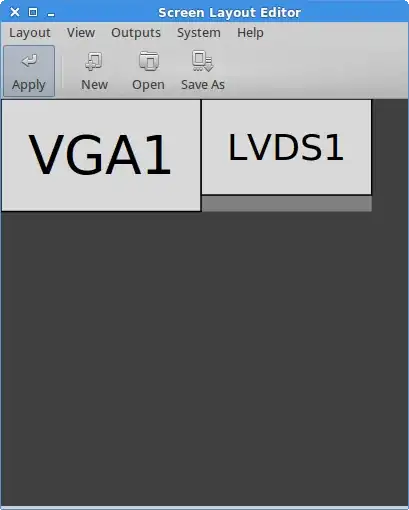
Use the graphic interface of xrandr, called grandr. Install it as follows:

sudo apt-get update
sudo apt-get install grandr

Then go to systems -> Multiple Screens in the Xubuntu menu.

Here you can turn off the "Auto" checkboxes for the different displays and extend the layout in the layout screen. It works very well (Xubuntu 11.10 / Thinkpad x220).

Eliah Kagan
  • 119,640
zamyatin
  • 151
13

For Xubuntu 13.04, the GUI frontend to xrandr is "ARandr"; works perfect!

apt-get install arandr

enter image description here

2

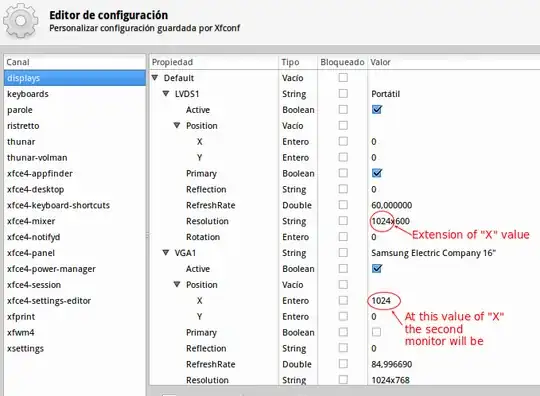
Xubuntu: It is a very simple solution to extend or expand your desktop to a new monitor!

You have to go to Settings Manager and select Settings Editor. Then choose display. We will declare wich one is the main monitor and check active the second monitor.
The "X" value of the second monitor will be the end of the size of the main monitor. It can know in the resolution.
Then if, for example, I have a netbook with 1024x600 resolution monitor, I have to tell that the second monitor begin in 1024 ("X" value), writing it in the "X" value of the "X" position field of the second monitor.
You have to exit your session an log in again to take effect.
See the image below! How to extends or expand your desktop in xubuntu

Sergio
  • 121
1

I had the same problem and I've solved it thanks to Aufwind's advice. However, I had a problem with bottom menu (it was impossible to open it, because bottom of the screen was "below" the physical display) and I was not satisfied with the "automatization" level of that solution too, so I wrote a Python script to solve my problem and - in general - make it easier to switch to dual-display mode:

    ./displaymanager.py -m dual -i "LVDS1;1366x768;60" -e "HDMI1;1920x1080;60"

and back to single display, with one command:

    ./displaymanager.py -m single -i "LVDS1;1366x768;60" -e "HDMI1"

It puts external display to the right by default - to put it to the left use argument:

    -o "ei"

You can bind both commands to - i.e. - menu items (activators?) to use it in a comfortable way.

I'm still working on some little fixes to make in more general in use.

You can find it on https://github.com/regispl/displaymanager + short README I hope it will help someone ;)

0

For people looking to save the xrandr dual head settings for future logins, simply make the script above executable with

chmod +x dual_monitor.sh

Then go to the xfce panel menu at Settings > Settings manager > Session and startup > Application autostart.

Then add the executable script to the list. If this doesn't work for you, let me know. I have another python script that I use instead. ;-)