Script + launcher to rotate the screen and toggle Keyboard, in one step
The script below will both
The script
#!/usr/bin/env python3
import subprocess

# --- set the name of the screen, and the rotate direction and the id of your keyboard below
screen = "DVI-I-1"
rotate = "left"
disable = ["9", "14"]
# ---

matchline = [
    l.split() for l in subprocess.check_output(["xrandr"]).decode("utf-8").splitlines()\
    if l.startswith(screen)
    ][0]
s = matchline[
    matchline.index([s for s in matchline if s.count("+") == 2][0])+1
    ]

newset = ["normal", "1"] if s == rotate else [rotate, "0"]
subprocess.call(["xrandr", "--output", screen, "--rotate", newset[0]])
for item in disable:
    subprocess.call(["xinput", "set-prop", item, "Device Enabled", newset[1]])
How to use
- Copy the script into an empty file, save it as
rotate.py
Copy the launcher below into an empty file, save it as rotate.desktop
[Desktop Entry]
Exec=python3 /path/to/rotate.py
Icon=preferences-desktop-keyboard
Name=Rotate & Disable Keyboard
Type=Application
In the line Exec=, replace the /path/to/rotate.py by the real path to the rotate.py script. Make the .desktop file executable. It will show an icon like:
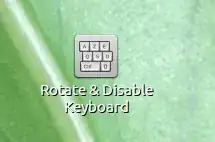
Now you have to find out two things:
a. the name of your screen (the one you want to rotate): Run in a terminhal:
xrandr
Look for a line with "connected" in it. The first string is the screen name, looking like the example in the script. (could also be VGA-1 or something like that)
b. The id of your keyboard, the one to be disabled. Run in a terminal the command:
xinput -list
as described in this answer.
Enter the found items in the head of the script:
# --- set the name of the screen, and the rotate direction and the id of your keyboard below
screen = "DVI-I-1"
rotate = "left"
disable = ["9"]
# ---
Now you're done, either use the .desktop file directly from your desktop or move it to ~/.local/share/applications and drag it to the launcher from Dash.
If you do the latter, note that after rotating the screen, the icon will be unresponsive for appr. 7 seconds.
Have fun!


