How can I remove the Workspace Switcher launcher from the Unity dock?
Asked
Active
Viewed 8.6k times


8 Answers
69
- To disable workspaces completely
- See @fossfreedom answer https://askubuntu.com/a/211169
To just remove the icon but still preserve workspaces
Open the terminal and execute:
gsettings get com.canonical.Unity.Launcher favorites
the output will be something like,
['application://nautilus.desktop', 'application://chromium-browser.desktop', 'application://ubuntu-software-center.desktop', 'application://ubuntuone-installer.desktop', 'application://ubuntu-amazon-default.desktop', 'application://UbuntuOneMusiconeubuntucom.desktop', 'application://gnome-control-center.desktop', 'unity://running-apps', 'unity://expo-icon', 'unity://devices']To remove the workspaces icon from the dock you should just take out
'unity://expo-icon'from that list. Taking it out, for this case the command should be:gsettings set com.canonical.Unity.Launcher favorites "['application://nautilus.desktop', 'application://chromium-browser.desktop', 'application://ubuntu-software-center.desktop', 'application://ubuntuone-installer.desktop', 'application://ubuntu-amazon-default.desktop', 'application://UbuntuOneMusiconeubuntucom.desktop', 'application://gnome-control-center.desktop', 'unity://running-apps', 'unity://devices']"(Don't forget the double quotes for the list on
gsettings set)
Currently I'm using eight workspaces with the help of Unity Tweak Tool. I like to have multiple workspaces, but didn't like the unremovable Unity Launcher icon that much, even more because it could only resemble four workspaces while I was using eight instead.


45
For 14.04
Drag the undesirable icon on the trash can.
For 13.04
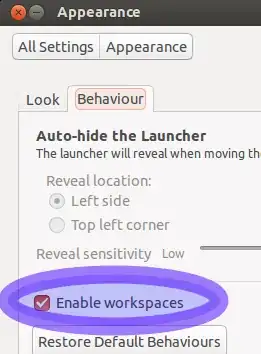
By default, the workspace-switcher is not enabled in the Launcher. This setting is toggleable via the Appearance - Behaviour tab in System Settings
Untick the option shown in the following picture to remove the workspace-switcher icon.
12.10
If you are prepared to work with just one virtual desktop (i.e. no additional workspaces) then the following will work for 12.10 and later.
gsettings set org.compiz.core:/org/compiz/profiles/unity/plugins/core/ hsize 1
gsettings set org.compiz.core:/org/compiz/profiles/unity/plugins/core/ vsize 1
Before:

After:


fossfreedom
- 174,526
14
For Ubuntu 11.10 & Ubuntu2D
Edit the file /usr/share/unity-2d/launcher/Launcher.qml with your favorite text editor, ie:
sudo nano /usr/share/unity-2d/launcher/Launcher.qml
For Ubuntu 12.04 & Ubuntu2D
Edit the file /usr/share/unity-2d/shell/launcher/Launcher.qml with your favorite text editor, ie:
sudo nano /usr/share/unity-2d/shell/launcher/Launcher.qml
Locate these lines
    Component.onCompleted: {
        items.appendModel(bfbModel);
        items.appendModel(applications);
        items.appendModel(workspaces);
        items.appendModel(devices);
        shelfItems.appendModel(trashes);
    }
And change them to
    Component.onCompleted: {
        items.appendModel(bfbModel);
        items.appendModel(applications);
/*        items.appendModel(workspaces);*/
        items.appendModel(devices);
        shelfItems.appendModel(trashes);
    }
Ubuntu
Unfortunately the desktop switcher is hard coded to unity and cannot be removed without making source code modifications.
Make sure you have the package dpkg-dev installed
sudo apt-get install dpkg-dev
To modify the code and compile it your self you need to do the following
mkdir ~/code
cd ~/code
mkdir build
cd build
apt-get source unity
cd unity*
Open plugins/unityshell/src/LauncherController.cpp with your favorite text editor, ie:
nano plugins/unityshell/src/LauncherController.cpp
Locate the lines
num_workspaces_ = WindowManager::Default()->WorkspaceCount();
if (num_workspaces_ > 1)
{
  InsertExpoAction();
}
Change them to
/*num_workspaces_ = WindowManager::Default()->WorkspaceCount();
if (num_workspaces_ > 1)
{
  InsertExpoAction();
}*/
Build the package
sudo apt-get build-dep unity
debuild -us -uc
Wait for it to finish and install when done
cd ..
sudo dpkg -i unity*.deb libunity*.deb netbook*.deb

Rahul Virpara
- 11,860

Bruno Pereira
- 74,715
12
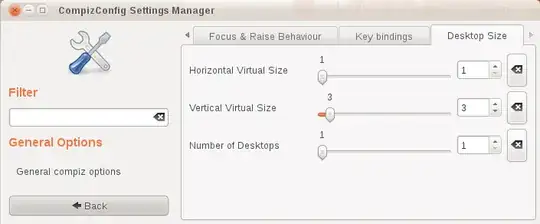
For Ubuntu 11.04/11.10/12.04 (does not work in Unity 2D):
Install
Compiz Config Settings Manager from the Ubuntu Software Center
Open Compiz Config Settings Manager from Dash
Goto General Options and Desktop Size tab
Change Horizontal Virtual Size to '1', the Vertical Virtual Size can be any number.
Restart Unity by opening Run Command (Alt-F2) and typing
unity

7
11.04
Currently there's a handy little bug in unity that allows you to do this. Open a up a terminal and run 'gnome-panel'. Once gnome panel is running, add the 'workspace switcher' applet to the panel. Open up the workspace switcher preferences and select 1 column and 4 rows. Log out and back into unity, and viola! The workspace switcher is missing now.
Yes I know, it's a somewhat annoying way of removing it if you use workspaces, but it's the only way i know of right now..

To get the Unity launcher switcher back, simply open the gnome-panel in terminal again, and go back to a 2 X 2 grid. Logout and log back in.

2
12.04
This is now easy, thanks to an addition to Isaac Joseph's lovely Unity Revamped (also brings back dodge-windows and dodge-active-window and gives a few other options).
Add the repository with your software manager of choice or:
sudo add-apt-repository ppa:ikarosdev/unity-revamped
This is now an alternative source of unity, that'll report itself as just slightly ahead of the canonical one in version. Upgrade and you'll have this new version:
apt-fast update && apt-fast dist-upgrade
Or if you don't use apt-fast, then:
sudo apt-get update && sudo apt-get dist-upgrade
Or just use the software updater.
Log out and in, and go to ccsm. The Ubuntu Unity Plugin will now have, on the "experimental" tab an option labelled 'Show "Expo Icon" in the launcher', that's enabled by default. Disable this and the icon is gone.
Disabling the icon doesn't disable the Super+S binding, should that be your preferred way of switching workspaces.

1
12.04
Install MyUnity from Software Center.
Open it, go to Desktop, decrease (move the bar to the left) for H Desktop and V Desktop, both to minimal.
Restart.

Rael Gugelmin Cunha
- 6,912
0
For 14.04 and newer LTS releases with Unity.
Launch Settings->Appearance and check the boxes as shown below.

The launcher icon to acces the switcher via mouse looks like this:


Elder Geek
- 36,752